
Most AI image tool comparisons are oddly bad at the one thing people actually want to know: how fast the tool feels when you are trying to make something useful under normal human time pressure.
Not lab conditions. Not cherry-picked “wow” images from the company homepage. Not a creator with six monitors and a prompt library the size of a novella. Real use. Real deadlines. Real friction.
If you are comparing tools and only asking which one makes the prettiest image, you are missing half the story. Speed matters. But not just raw render time. Prompt interpretation speed matters. Iteration speed matters. Edit speed matters. Recovery speed when the tool gives you cursed hands or a background that looks like it was designed by a confused raccoon also matters.
This is where good AI Image Tool Speed Test Questions for Creators become useful. They help you compare tools based on the way creators actually work: testing, revising, repurposing, and trying not to lose an hour fixing something that was supposed to save time.
Here is how to evaluate AI image tools without falling for shiny demos, vague claims, or comparison charts that tell you almost nothing once real workflow enters the room.
If you want the bigger picture, start with the parent guide.
What creators should actually mean by “speed”
Speed is not one number.
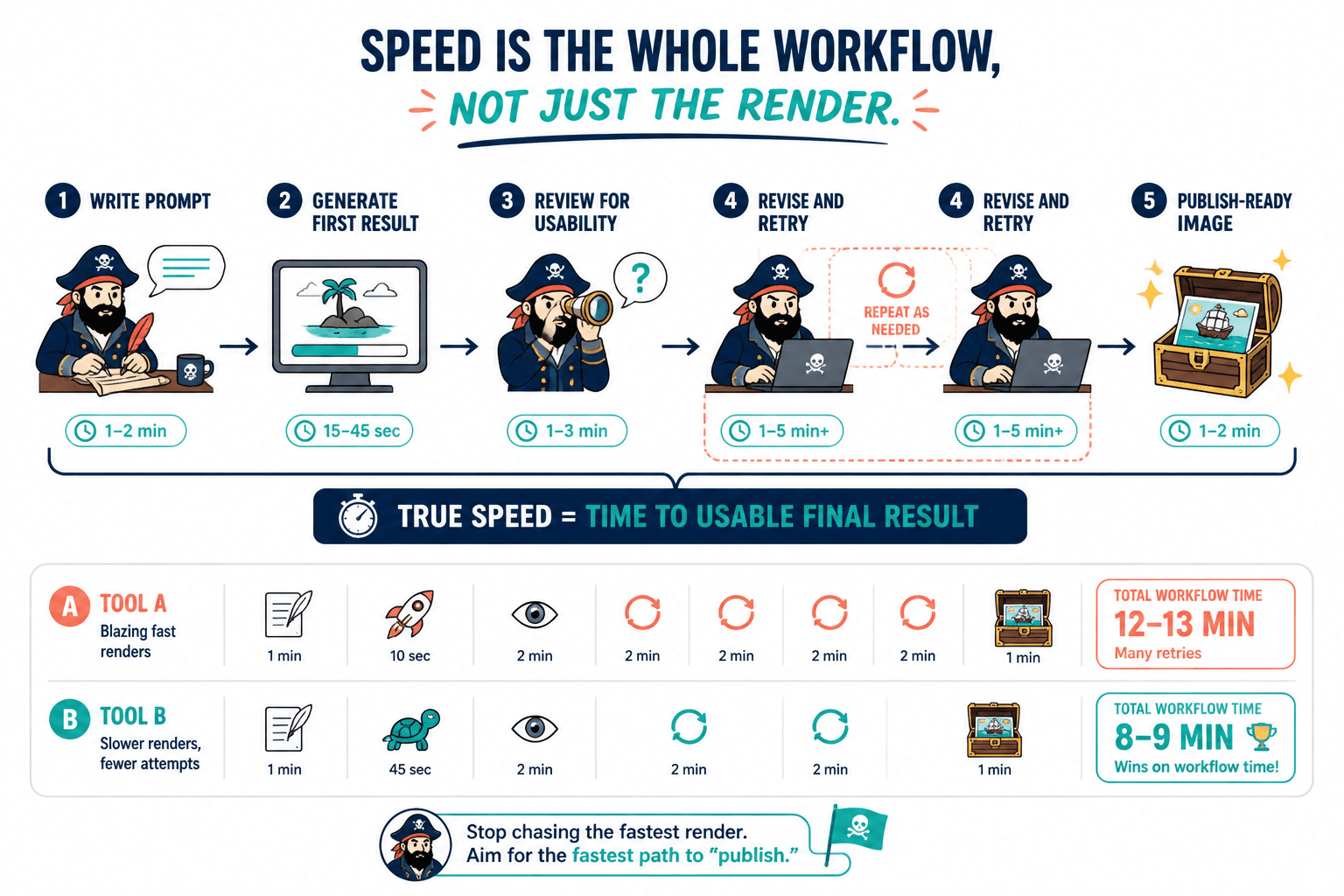
A tool can generate an image in 12 seconds and still be slow in practice because it takes five retries to get something usable. Another can take 35 seconds but nail the brief in two attempts. The second tool is often faster where it counts.
That is the trap in a lot of “best AI image tool comparisons.” They measure output time and ignore workflow time. Creators do not buy seconds. They buy usable results without unnecessary fiddling.
When you run speed tests, you are really trying to answer a broader question: How quickly can this tool help me reach a result I would actually publish, send to a client, use in a funnel, or put on a sales page without feeling mildly annoyed the entire time?
That is a much better benchmark than “fastest render wins.”
The core AI Image Tool Speed Test Questions for Creators
If you want a comparison that reflects reality, ask these questions in roughly this order.
1. How long does the first usable image take?
Not the first image. The first usable image.
That means something close enough to your goal that you would keep working from it rather than scrapping the entire attempt. Time this from prompt entry to “okay, this is in the zone.”
This matters because some tools are fast but wildly interpretive. Fine if you are mood-boarding. Less fine if you need a clean product scene, a branded header image, or a set of character visuals that should not mutate into strangers every three generations.
2. How many prompt rewrites does it take to get close?
A tool that needs prompt gymnastics is slower than it looks.
Count how many times you have to rewrite the prompt before the model starts behaving. If one tool responds well to straightforward language and another needs pseudo-magical syntax tricks, that is a workflow difference worth noting.
Creators often underestimate prompt friction because they confuse technical control with productivity. Sometimes “more control” just means “more ways to waste your afternoon.”
3. How fast is iteration after the first result?
This is a big one. Once you have a decent image, can you quickly make it better?
Test things like:
- changing composition
- adjusting lighting
- swapping aspect ratio
- keeping the same style across versions
- refining details without losing the whole concept
Some tools are fine at generating from scratch and terrible at controlled refinement. That is not ideal for creators who need consistency, revisions, or client-friendly outputs.
4. How often does the tool break the thing you wanted to keep?
This is where a lot of speed tests should get a little meaner.
If you ask for one change and the model casually destroys three other elements, that tool is slowing you down. A fast workflow depends on preserving good parts while editing weak ones.
Ask:
- Does it keep characters or objects recognizable across revisions?
- Does it preserve layout when editing details?
- Does it hold onto brand colors or visual tone?
- Does inpainting actually solve problems, or create newer stranger ones?
5. How long does it take to learn the interface well enough to move quickly?
Interface learning time is real time.
A creator-friendly tool should not require archaeology just to find the settings that matter. If basic actions feel buried, the tool may still be good for specialists, but it is not necessarily fast for working creators.
Watch for interface drag like:
- buried edit tools
- confusing model selection
- too many unnamed toggles
- unclear version history
- credits or queue info hidden until too late
6. How well does it handle common creator tasks, not just art prompts?
This one separates impressive demos from useful tools.
Run prompts based on what creators actually need:
- blog feature image
- lead magnet cover
- podcast artwork variation
- YouTube thumbnail concept art
- social post visual in a consistent style
- product mockup scene
- web banner with negative space for text
- simple branded illustration
A tool can be brilliant at surreal fantasy portraits and still be mediocre for business visuals. Plenty of creators find that out after they subscribe. Bit late then.
7. How fast can you get consistent results across a batch?
One good image is nice. Ten usable images in a coherent set is better.
If you create content at volume, batch reliability matters. Test whether the tool can produce a small set of visuals that feel related enough to use together in a campaign, article series, carousel, or product page.
Speed drops hard when every asset needs to be rescued individually.
8. What happens when you need edits after export?
Some tools are quick until you need a tiny revision after downloading. Then suddenly you are rebuilding half the image from scratch.
Check whether the tool makes it easy to:
- reopen previous generations
- re-edit from version history
- resize for another format
- remove or replace objects
- expand the scene without breaking style
This is not glamorous comparison content, but it is exactly the sort of thing that saves creators time in the real world.
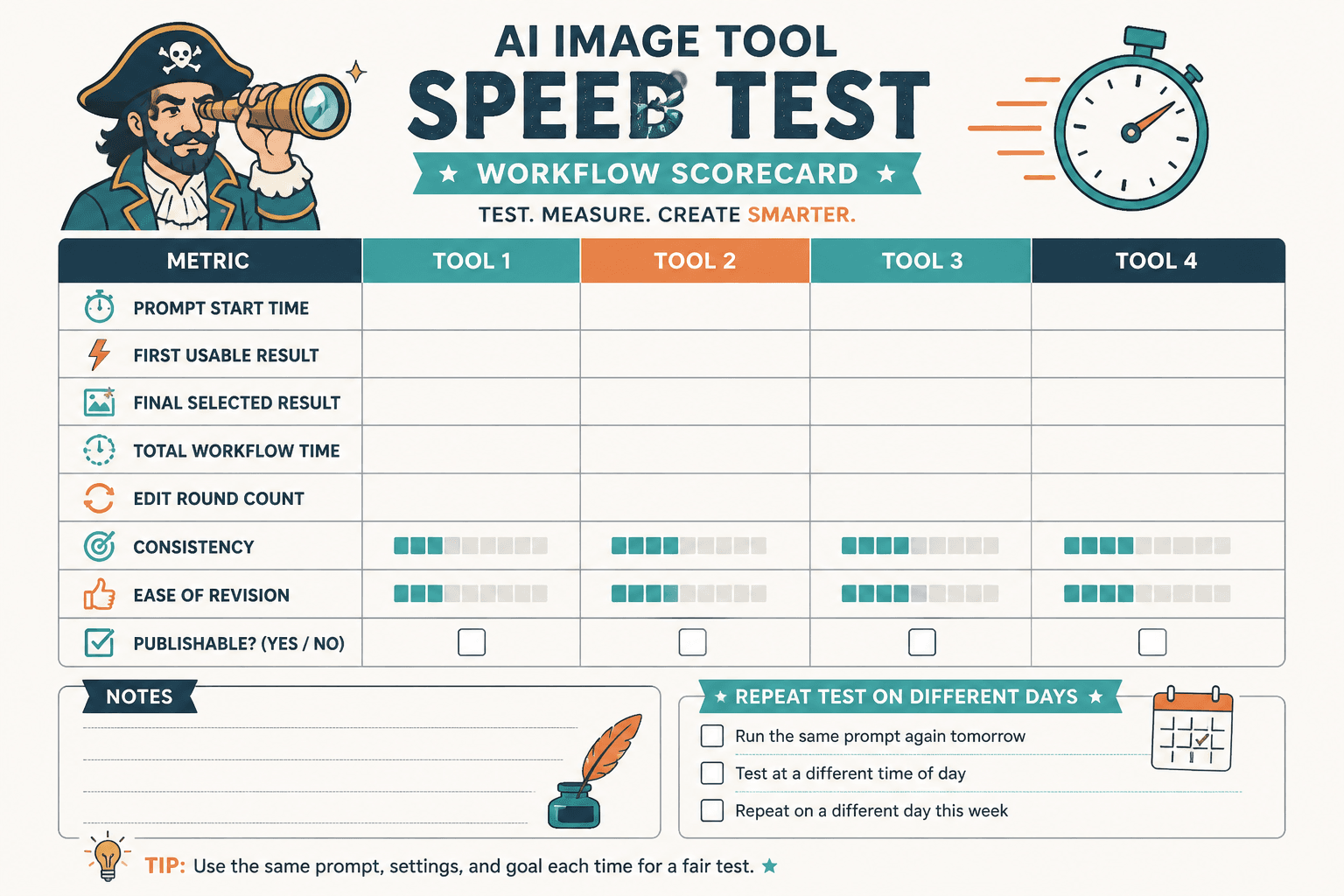
A practical scorecard for speed testing
You do not need a hyper-technical benchmark system. You need a scorecard that helps you compare tools on useful criteria.
| Question | What to measure | Why it matters |
|---|---|---|
| First usable image | Minutes to decent output | Reflects actual starting speed |
| Prompt friction | Number of rewrites | Shows how much effort the tool demands |
| Iteration speed | Time from decent to polished | Reveals workflow efficiency |
| Edit stability | How often revisions break good elements | Shows whether the tool helps or sabotages |
| Batch consistency | How similar usable outputs feel | Important for campaigns and content series |
| Interface friction | Clicks, confusion, hidden controls | Affects daily usability |
| Recovery speed | Ease of fixing mistakes later | Important for revisions and reuse |
Rate each category on a simple 1 to 5 scale. Then add notes. Notes matter more than fake precision.
For a broader framework on comparing tools beyond speed alone, read what really matters in AI image tool comparisons for solo creators.
How to run a fair speed test without fooling yourself
Creators are very capable of accidentally rigging their own tests.
If you know one platform better, your results may reflect familiarity more than tool quality. If one prompt suits one model’s strengths, that can skew the comparison too. So keep the process boring enough to be fair.
Use the same prompt set across tools
Create a small test pack of prompts that reflects your actual work. Around five to eight is enough.
- one simple commercial visual
- one style-heavy creative visual
- one image requiring text space
- one branded or consistent-series request
- one edit or variation task
If your work is niche, make the prompts niche. There is no point testing editorial illustrations if you mostly need coaching graphics or ecommerce mockups.
Test at least one revision chain
Do not stop at first output. Ask for changes.
A lot of tools look strong on generation and much weaker on refinement. Since real work usually involves revision, your speed test should include at least one round of edits per prompt.
Track total workflow time, not just render time
Start the clock when you begin writing the prompt. Stop it when you have something you would actually use. That is the number that matters.
Raw render speed is a sub-metric. Useful, yes. But not the main event.
Repeat the test on different days if possible
Queues, server load, and model behavior can vary. If a tool feels weirdly slow or unusually brilliant one day, confirm it before deciding it is your winner.
Questions that matter more than “Which tool is fastest?”
If you are a creator, consultant, coach, marketer, or solo founder, these are usually better buying questions.
Which tool gets me to “good enough to publish” with the least hassle?
This is often the best practical question.
You do not need the highest ceiling if getting there requires endless retries. A tool with slightly less visual range but much better reliability may be the better choice for content production.
Which tool matches the kind of visuals I actually create?
The fastest fantasy image generator on earth is irrelevant if your work mostly involves clean website graphics, educational visuals, or simple branded assets.
Context matters more than leaderboard energy. If you want help choosing by use case, this guide to finding the right-fit comparison is a better next read than another generic “best tools” roundup.
Which tool stays fast when I need consistency?
Many creators do not need one masterpiece. They need a repeatable visual system. That changes the comparison.
A tool that helps you maintain style, framing, tone, and reusable outputs across a week of content can be more valuable than one that occasionally produces a stunning one-off.
Which tool wastes the least creative energy?
This one sounds soft, but it matters.
Some tools are mentally draining. Too many decisions. Too many retries. Too much uncertainty. After a while, the friction starts affecting how often you use the tool at all. That is a cost, even if the pricing page does not mention it.
Common mistakes in AI image tool speed comparisons
If you want your comparison to be useful, avoid these.
Testing only one prompt
One prompt tells you almost nothing. It tells you how one model handled one request once. Congratulations. That is not a comparison. That is a screenshot with opinions attached.
Confusing visual impressiveness with workflow speed
Creators often get distracted by the most dramatic output and ignore the fact that it took eight attempts and a ritual sacrifice of half an hour to get there.
Pretty is good. Repeatable is usually better.
Ignoring edit tools
If your comparison skips inpainting, outpainting, variations, and revision controls, you are mostly comparing toy experiences. Editing is where professional usefulness shows up.
Not accounting for budget
A “faster” tool that burns through credits during retries may be slower financially, especially if you are working with a small budget.
If cost efficiency matters, read how to compare AI image tools on a small budget. It covers the tradeoff most creators forget: cheap tools waste time, but expensive tools can waste money just as quickly if your workflow is sloppy.
Using someone else’s definition of “best”
Designers, marketers, content creators, YouTubers, ecommerce brands, and solo consultants do not need the exact same thing. If the comparison does not match your use case, its speed data is only loosely relevant.
A simple test workflow creators can copy
If you want to compare two or three tools without turning this into a science project, use this process.
- Choose 5 real prompts based on your actual content needs.
- Run each prompt in each tool using the same basic wording first.
- Track time to first usable image.
- Make one or two revisions to improve the result.
- Track total time to final usable output.
- Score prompt friction, edit stability, and batch consistency.
- Note interface annoyances, hidden delays, and export limitations.
- Compare cost per useful result, not just subscription price.
That gives you enough signal to make a decent choice without pretending to be an AI benchmark lab.
How speed fits into the bigger comparison picture
Speed matters, but it should sit beside other factors, not replace them.
The best AI Image Tool Comparisons Speed Tests Questions for Creators should eventually lead into a broader evaluation that includes style fit, control, consistency, commercial usefulness, editing options, output quality, pricing, and workflow compatibility.
That is why it helps to pair this article with a few related reads:
- AI image tool comparisons for the broader topic cluster
- how to compare style and quality the smart way if output quality is your bigger concern
- what really matters for solo creators if you need practical buying criteria
- best comparisons for finding the right fit if you are still narrowing options
You can also browse the wider category through the AI image tools comparison section if you are building a fuller stack around image workflows.
Fast is nice. Reliable is what saves you
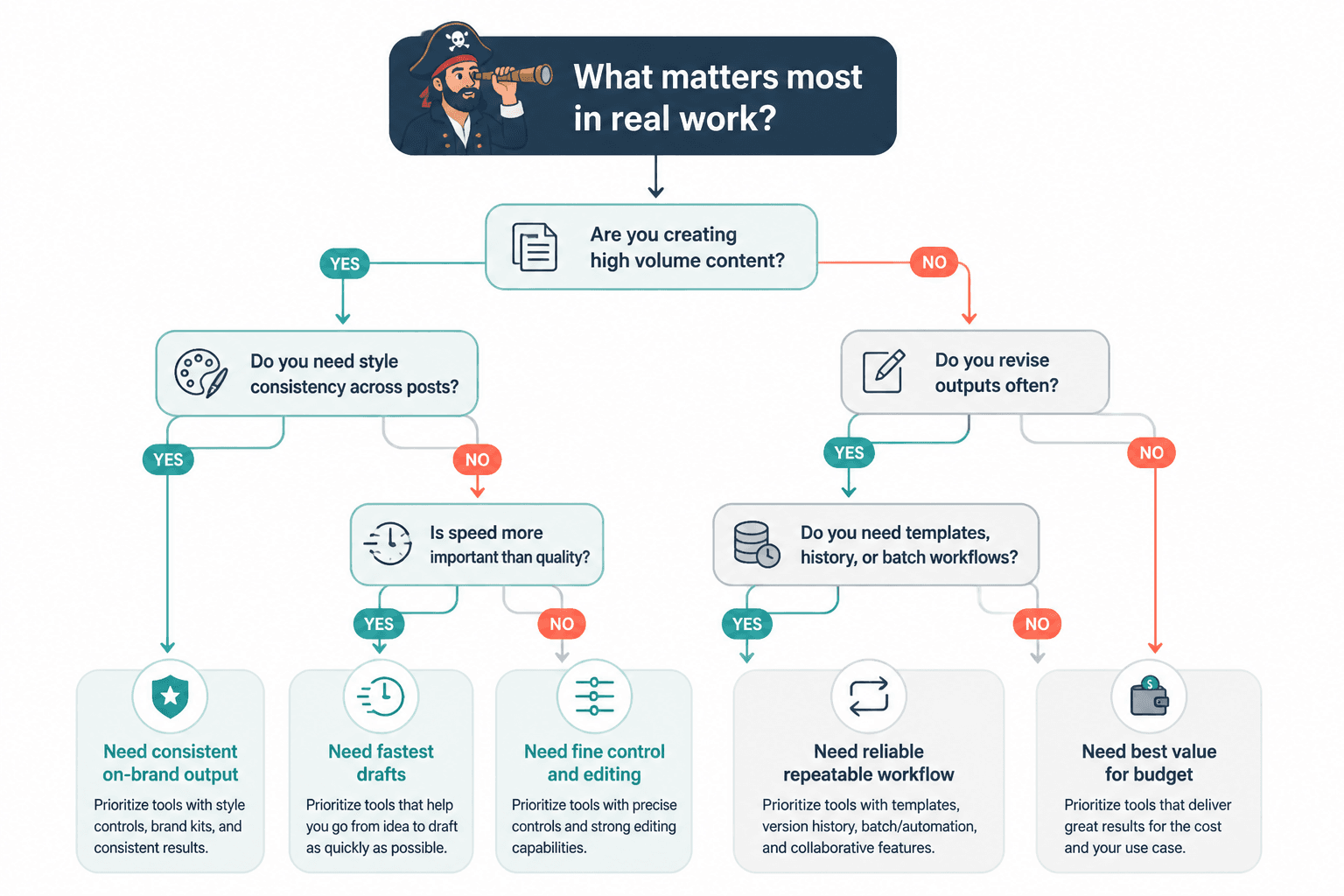
Here is the clean version: the “best” tool for creators is usually not the one with the flashiest demo or the shortest generation timer. It is the one that helps you get to useful, repeatable, on-brand output with the least friction.
The bigger point is simple: clearer structure and clearer writing make the piece more useful. That is usually what makes the ending land better too.